Officejet Pro 9125E Review: Real User Experience After 3 Months
I've been using the Officejet Pro 9125E as my primary home-office all-in-one for about three months. I bought it to replace an aging inkjet that struggled with scanning and to avoid the higher upfront cost of a laser MFP. I use it for a mix of tasks: client invoices and contracts (mostly black-and-white text), color flyers and presentation handouts, occasional photo prints, and daily scanning of receipts and documents into my digital filing system. What follows is an honest, first-person account of how it performed in reality — the things I appreciated, the frustrations I ran into, and the practical trade-offs I noticed after regular use.
Unboxing and First Impressions
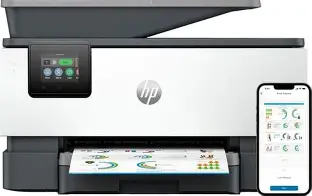
Out of the box, the 9125E felt solid and a bit larger than my old consumer printer — not surprising for a business-oriented MFP. The build feels more robust than entry-level models: paper trays slide smoothly, and the control panel is a responsive touchscreen with sensible defaults. The device came with starter cartridges and a user guide. I appreciated that setup didn't require me to decipher a tiny manual for basic functions; the touchscreen walks you through Wi‑Fi setup, aligning cartridges, and connecting the mobile app.
Setting it up on my home network took longer than I expected because my router sits in another room. The printer's Wi‑Fi reconnection behavior was finicky at times — more on that below — but once connected, it integrated with my Windows PC and my phone without much fuss. I did sign in to HP's services to get access to features like remote printing and cloud scanning; you can skip that if you want to avoid cloud ties, but some features become limited.
Daily Use: Printing, Scanning, Copying
In daily operation the 9125E handled my workload comfortably. Text documents come out crisp and dark; I was surprised at how cleanly it rendered small fonts and legal-sized margins for contracts. When I print color slides and flyers, colors are accurate for office printing — solid for graphics and charts, but not as punchy as a dedicated photo printer. For my purposes (handouts and internal marketing materials) the color fidelity and sharpness are perfectly acceptable.
Speed-wise, the printer feels snappy for single jobs and small batches. For larger print runs (50–100 pages), it sustains throughput without overheating. I did notice the first page out time is faster than many home printers I've used, which matters when you're printing quick one-off documents. Duplex printing automatically worked as advertised and produced reliably aligned two-sided pages — a feature I've come to expect and rely on for client packets.
The scanner and automatic document feeder (ADF) are where the 9125E adds practical value. I scan receipts, invoices, and multi-page documents several times a week. The ADF handles mixed-size paper better than my previous models, and the duplex ADF scanning is a huge time-saver. OCR in the bundled software is decent; I often scan to searchable PDFs and the text recognition has been accurate enough that I rarely need manual corrections.
Ink, Running Costs, and Subscription Options
One thing I track closely is ink usage. After three months of roughly 200–300 pages per month (a mix of text and color), I found the ink depletion to be noticeable — especially color when printing flyers. The 9125E is not unusual here: inkjet color printing uses more consumables than black-and-white laser printing. I experimented with different print-quality settings and found that switching non-critical jobs to "Draft" or "Economy" mode saved a surprising amount of ink without affecting legibility.
I opted into HP's ink subscription early on to see how it would affect convenience. The subscription-style refill service can reduce interruptions and sometimes cut the effective cost-per-page, but it also ties you into a recurring plan that may not suit everyone. In my experience, the subscription is convenient — cartridges arrive before you run dry — but you should calculate whether your monthly volume justifies it. If your printing is very sporadic, you might end up paying for service you don't fully use.
Software, Mobile Printing, and Connectivity
I used the HP Smart app on both Android and iOS, and connected via Wi‑Fi from Windows and macOS devices. The app is functional and provides quick access to print, scan, and check ink levels. However, I ran into a couple of annoyances: the mobile app occasionally timed out or required re-signing in after long periods of inactivity, and the Wi‑Fi connection sometimes dropped, forcing me to restart the printer or reconnect via the touchscreen. In my environment with a mid-range router and intermittent network congestion, this happened roughly once every two weeks. It wasn't a dealbreaker, but it was inconvenient.
Find top-rated Electronics products at great prices.
Shop Amazon →I did try AirPrint and Windows native printing; both worked fine when the network was stable. I also used USB direct printing a few times, which was a reliable fallback when Wi‑Fi acted up.
Paper Handling and Jams
Paper handling has been solid most of the time, but it isn't flawless. I experienced only a handful of paper jams during the three months — usually when I loaded a mix of heavier cover stock with regular paper, or when the output tray was crowded. Clearing jams is straightforward thanks to accessible panels, but it's still frustrating when you're in the middle of a timed print job. The printer's paper tray capacity is adequate for a small home office but you may want an external tray if you do large recurring print runs without refilling.
Noise and Ergonomics
The 9125E is noticeable while printing but not oppressive. Page-by-page printing is quieter than many older laser MFPs I've used, though color prints are slightly louder than black-and-white. The scanner lid and ADF are well-balanced and easy to operate with one hand. The footprint is larger than compact home printers, so I had to rearrange my desk to fit it comfortably. If you have limited desk space, plan for a dedicated surface or shelf.
Maintenance and Reliability
Over three months, I didn't experience hardware failures or persistent errors. Firmware updates arrived a couple of times and installed without incident. The printer periodically prompts for maintenance tasks like printhead alignments — I ran these when suggested, and they generally improved text quality after heavy color use. The only recurring minor issue was the occasional message about cartridge recognition; usually removing and reseating the cartridge resolved it. That happened maybe three or four times during the period.
What I Liked
- Reliable text quality: Crisp, professional-looking black-and-white documents for client use.
- Convenient scanning/ADF: Duplex ADF scanning saved me time for multi-page document digitization.
- Flexible connectivity: Works with AirPrint, USB, and the vendor app — handy across devices.
- Duplex and color capabilities: Built-in duplex printing and decent color rendering for office graphics.
- Good build quality: Feels robust and designed for frequent use compared to entry-level home printers.
What Bothered Me
- Ink costs: Color printing uses a lot of ink; subscription help is convenient but may not be cost-effective for low-volume users.
- Wi‑Fi instability: Occasional drops required reconnecting the printer or restarting it.
- Paper jams with mixed media: Handling heavy stock alongside regular paper raised the chance of a jam.
- Size and footprint: Takes more desk space than smaller consumer models — plan accordingly.
- Occasional cartridge recognition messages: Minor annoyance requiring reseating cartridges.
Comparison: Officejet Pro 9125E vs Typical Alternatives
| Feature | Officejet Pro 9125E | Typical Laser MFP | Dedicated Photo Inkjet |
|---|---|---|---|
| Best for | Small office/home office with mixed black and color jobs | High-volume black-and-white printing | High-quality photo prints |
| Print quality (text) | Excellent | Excellent | Good |
| Print quality (color) | Good (office graphics) | Fair (offices don't focus on color) | Excellent (photos) |
| Cost per page | Medium (color higher) | Low (black & white) | High (specialty inks) |
| Speed | Good for small/medium jobs | Very fast for bulk printing | Slower (high-quality prints) |
| Duplex & ADF | Included and reliable | Often included | Sometimes absent |
| Footprint | Medium | Large | Medium |
| Noise | Moderate | Often louder | Moderate to quiet |
Buying Guide: Is the 9125E Right for You?
If you’re considering the Officejet Pro 9125E, here are the practical questions I asked myself before buying, and the answers I’d give based on my three-month experience.
1. How much do you print each month?
If you print a few hundred pages monthly with a mix of text and occasional color, the 9125E is a good fit. For heavy monochrome volume (think thousands of pages), a laser MFP will typically have a lower cost-per-page and higher duty cycles.
2. Do you need a strong scanner/ADF?
Yes — the ADF on the 9125E is one of its primary strengths. If you scan receipts, contracts, or multi-page documents regularly, the duplex ADF and clean OCR make life easier.
3. Are you sensitive to running costs?
Inkjet color comes with ongoing consumable costs. If you rely heavily on color prints, include a buffer in your budget for cartridges or consider a subscription. If you mainly print black-and-white, verify what high-yield cartridge options are available and compare per-page costs.
Shop the latest Electronics picks on Amazon.
View Offers →4. Is Wi‑Fi reliability important?
I found the 9125E generally reliable on Wi‑Fi but not entirely flawless. If you have a very congested network, place the printer near your router or use wired Ethernet where possible to avoid intermittent drops.
5. How much space do you have?
The unit is bigger than compact home printers. Check measurements and ensure your desk or shelf can accommodate it, especially with the ADF and output tray extended.
6. Do you want cloud convenience?
The vendor's mobile and cloud features are convenient for scanning to email and cloud services. If you prefer to avoid cloud connections for privacy reasons, be aware that some features will be limited when you skip account sign-in.
Practical Tips from My Experience
- Keep a spare set of cartridges: I keep a spare black cartridge and one color tri-pack on hand. It prevented downtime when a cartridge low warning appeared before a big print job.
- Use economy mode for drafts: Switch to draft for internal documents to save ink and extend cartridge life.
- Place the printer near the router: If Wi‑Fi is flaky, moving it closer to the router dramatically reduced disconnects.
- Feed heavier stock separately: For cover stock or glossy media, print smaller batches and adjust paper settings to avoid jams.
- Run occasional maintenance cycles: Let the printhead alignment and cleaning run when suggested to keep color output consistent.
Final Thoughts and Conclusion
After three months of daily use, the Officejet Pro 9125E has been a dependable workhorse for my home office. In my experience, its strengths are excellent text print quality, a useful duplex ADF scanner, and a sturdy build that stands up to frequent use. I was pleasantly surprised by how well it handled mixed tasks — from crisp contract printing to color handouts — without being a specialist photo device.
The downsides are the familiar inkjet trade-offs: color ink consumption and occasional network hiccups. The footprint and occasional paper-handling quirks mean it isn't for everyone, but if you want an all-in-one that sits squarely between consumer convenience and small-office capability, the 9125E delivers. It's a practical choice for someone like me who needs reliable scanning, good two-sided printing, and decent color without the higher cost or noise of a dedicated laser setup.
If you need a machine that performs reliably for mixed home-office duties and don’t mind managing ink expense, I was generally satisfied with the Officejet Pro 9125E and plan to keep it as my primary printer for the foreseeable future.